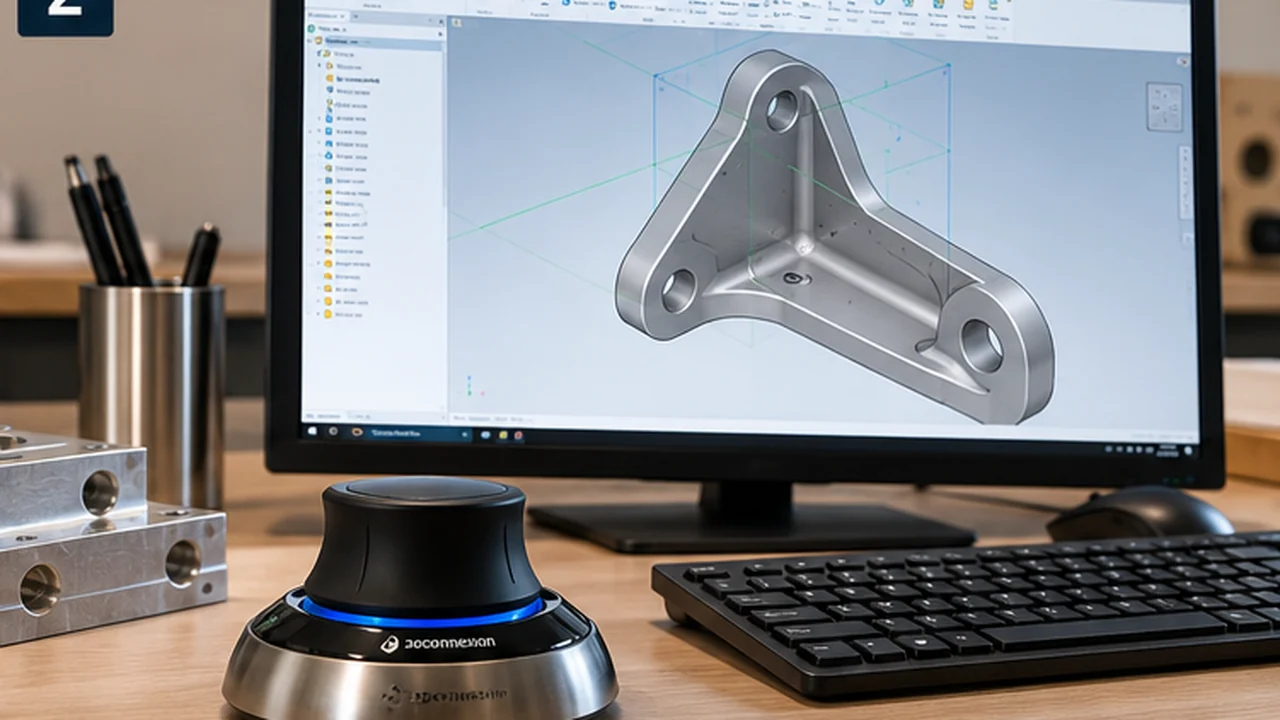
Yes. Autodesk Inventor supports 3Dconnexion SpaceMouse devices, letting you rotate, pan and zoom around 3D models with a dedicated controller. For engineers working with mechanical parts and assemblies, it offers another way to navigate without relying entirely on the ordinary mouse.
But how useful is a SpaceMouse in Inventor, what does it control, and do you actually need one?
What does a SpaceMouse do in Autodesk Inventor?
A SpaceMouse is a specialist 3D navigation controller. Instead of sliding it across the desk like a conventional mouse, you gently push, pull, tilt or twist its controller cap to change the view of a model.
- Rotate the view to inspect different faces of a component.
- Zoom in on a particular feature.
- Pan across the model without changing its orientation.
- Combine movements to navigate around complex geometry.
- Use supported controls for standard views or a fitted view.
It is designed to complement your mouse and keyboard, not replace them. One hand can control the model view while the other selects geometry and modelling commands.
Does Inventor officially support SpaceMouse?
Yes. Autodesk lists the 3Dconnexion SpaceMouse as a productivity input device in its Inventor 2026 system requirements, specifying 3Dconnexion driver version 10.7.0 or later. The manufacturer provides application integration through its 3DxWare software.
Depending on your device and software configuration, supported navigation features include object-focused navigation, 2D navigation, rotation control, standard views, custom views and programmable commands. Check the compatibility information for your exact Inventor and driver versions.
Important distinction: the standalone Inventor View application is not the same as full Inventor; Autodesk notes that Inventor View does not support the SpaceMouse add-in.
Using a SpaceMouse when designing parts
Imagine designing a machined bracket in Inventor. With a conventional mouse, you may repeatedly use the ViewCube, orbit controls or navigation shortcuts to inspect the model from different directions.
With a SpaceMouse, you can change the viewing angle using your other hand while keeping the mouse available to select faces, sketch geometry or modelling commands. This may be useful when checking holes, fillets, recesses and other features that are hard to see from one viewpoint.
The SpaceMouse does not create geometry for you. Its main role is to help you navigate around the geometry you have created.
Is it useful for assemblies?
Assemblies are another appealing use case. Consider a gearbox assembly containing shafts, bearings, gears and housings. You may want to rotate the view, zoom into a particular area and inspect how the components fit together.
A SpaceMouse can make those viewpoint changes more continuous, potentially reducing interruptions from switching between navigation controls. However, rotating your view is not the same as moving a constrained assembly component.
Can you customise the buttons?
Depending on the model, programmable buttons can provide access to frequently used commands. 3Dconnexion's Inventor integration offers application-specific commands and menus, with options varying by device and software version.
A user might assign frequently used views or modelling operations to available controls. More buttons offer more possibilities, but they do not automatically make a controller the best choice for every Inventor user.
How do you set up a SpaceMouse with Inventor?
- Check support for your SpaceMouse model, operating system and Inventor version.
- Download the appropriate 3DxWare driver from the official 3Dconnexion driver page.
- Install the driver and connect or pair the device as instructed.
- Open Inventor and load a 3D part or assembly.
- Test navigation by gently moving the controller cap.
- Adjust navigation sensitivity, behaviour and available button assignments in 3Dconnexion settings.
Spend some time tuning the settings before deciding whether the device suits your workflow.
What if the SpaceMouse does not work?
If navigation is jerky, buttons do not respond or Inventor does not recognise the controller, check the installed 3DxWare driver and Inventor updates. Restarting after driver installation may help. If navigation works but application-specific buttons do not, check that the relevant 3Dconnexion integration or add-in is loading correctly.
Older SpaceMouse models may not be supported by current drivers. Consult the manufacturer's compatibility information rather than assuming every older model will work.
Which SpaceMouse is best for Inventor?
For occasional modelling, a compact model may offer the main benefit—3D navigation—without taking up much desk space. Regular professional users may value the extra programmable controls and hand support of a SpaceMouse Pro. Enterprise offers more extensive command access, but its cost and complexity are most relevant to users who will use those features regularly.
For the detailed model-by-model buying discussion, see Is a 3Dconnexion SpaceMouse Worth It for CAD? Compact vs Pro vs Enterprise. That guide also covers current wired and wireless variants and the available Amazon UK links.
Is a SpaceMouse worth buying for Inventor?
There is no universal answer. Someone spending hours each day inspecting complex mechanical models may appreciate navigating with one hand while operating commands with the other. A beginner learning sketches, constraints and basic extrusions is unlikely to need one immediately: Inventor already has capable mouse, keyboard and ViewCube navigation.
There is also a learning curve. The six-direction controller can feel unfamiliar if you have spent years using conventional navigation methods.
Our perspective at CADMarket: I have extensive experience using and teaching AutoCAD and Inventor, and can see the attraction of a dedicated 3D controller. Former CAD students who now use SpaceMouse devices in industry have spoken positively about them, including one who described an initial learning curve. I have not owned or personally tested a SpaceMouse, so those comments should not be treated as measured productivity evidence.
Final verdict
Yes, you can use a SpaceMouse with Autodesk Inventor, and the integration is officially supported. Its main appeal is more fluid navigation of parts and assemblies, especially when you regularly inspect complex 3D geometry.
It is not essential and does not replace your ordinary mouse and keyboard. Before buying, decide whether you mainly need 3D navigation or would also use extra programmable controls.
Further reading
Disclosure: This is a researched editorial guide, not a hands-on test. Our linked SpaceMouse comparison contains Amazon UK affiliate links. As an Amazon Associate I earn from qualifying purchases.